
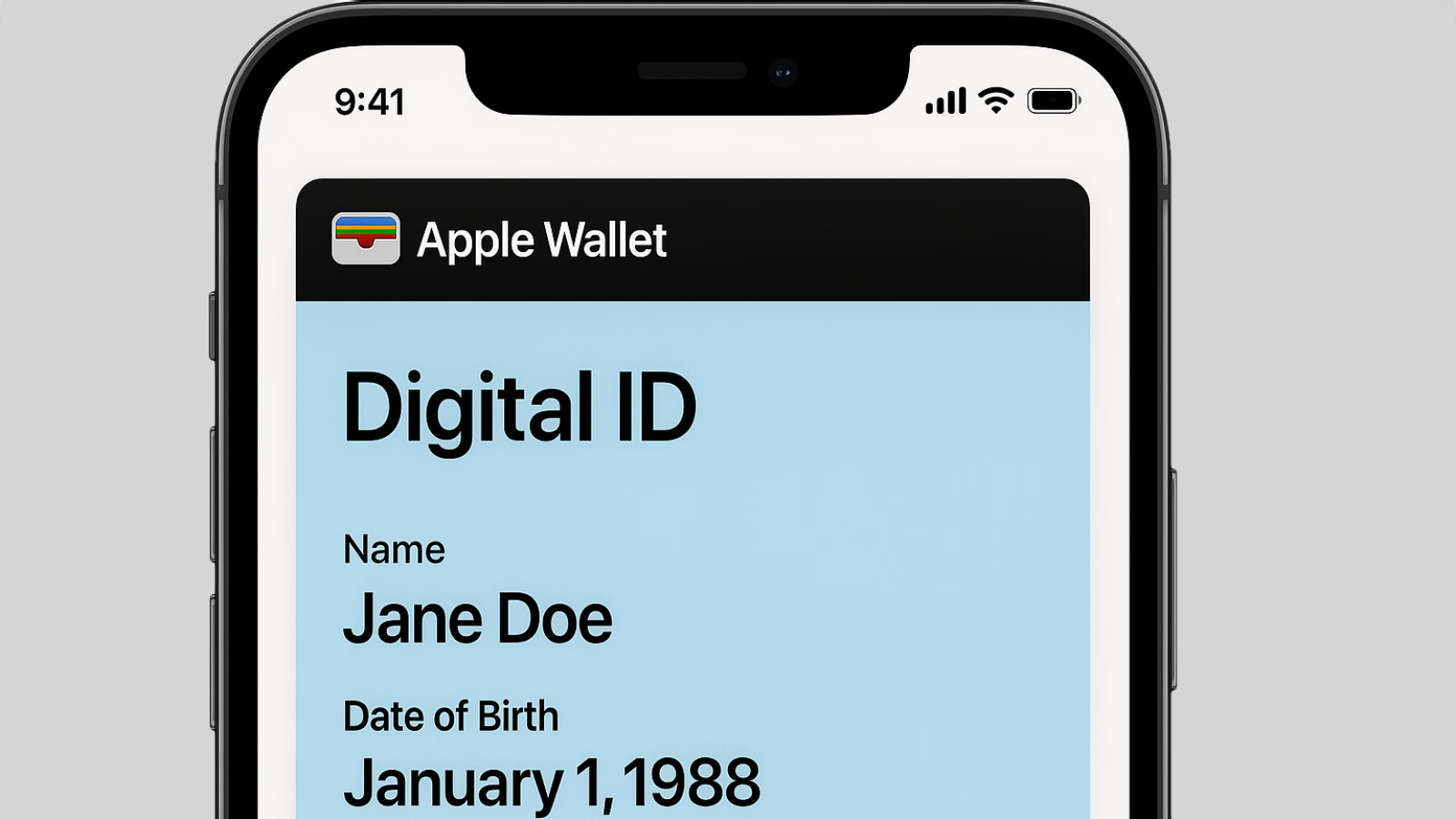
Apple Wallet Digital ID has been live since November 2025, when Apple turned on a feature that lets iPhone users add their U.S. passport to Apple Wallet and present it at TSA checkpoints in place of a physical document. Apple said at launch the feature would work at more than 250 airports for domestic travel, and that's roughly where coverage has stayed in the six months since.
For frequent domestic flyers, it's a quietly useful change. If you have an iPhone, a U.S. passport with the embedded chip, and a TSA lane equipped with a mobile ID reader, you can verify your identity without pulling out a card or a passport book. For travelers in the 38 states without a digital driver's license option, it's the first federally-backed mobile ID that works at airport security.
Here's how the feature actually works, what it doesn't do, and where it fits alongside TSA PreCheck and Clear.
Quick Answer: What Is Apple Wallet Digital ID?
Digital ID is an encrypted identification credential that uses information pulled from your U.S. passport to create a standalone ID inside Apple Wallet. It is not a digital copy of your passport. It's a separate credential that TSA accepts for domestic air travel. Your passport data stays encrypted on the device, and Apple has stated it cannot see when or where you present your ID.
Why It Matters
REAL ID enforcement, which took effect in May 2025, requires a compliant ID to board domestic flights. Digital ID meets that standard automatically, regardless of whether your state-issued driver's license is REAL ID compliant.
There's a privacy argument too. When you hand a physical driver's license to a TSA officer, your home address, height, weight, and other details are visible to anyone nearby. Digital ID shares only the specific data points TSA requests, and you authorize the share with Face ID or Touch ID before it transmits.
It also functions as a backup. A phone you've biometrically locked is harder to misuse than a license sitting in a wallet you might lose at the airport bar.
How It's Different From Digital Driver's Licenses
Apple has supported digital driver's licenses in select states since 2022, but adoption has been slow. As of this writing, the feature works in around a dozen states plus Puerto Rico, which leaves most Americans without a state-issued mobile ID option.
Digital ID sidesteps state participation entirely by using your federal passport. Any U.S. passport holder can create one, regardless of which state issued their license.
The verification mechanism is also different. State digital licenses link back to DMV databases. Digital ID uses the embedded RFID chip in the back cover of your passport to verify authenticity, then creates a credential that doesn't require ongoing government database access.
Both are accepted at TSA checkpoints. Digital ID is the broader-access option.
What You Need to Set It Up
Before you start, confirm the following:
- Device: iPhone 11 or later running iOS 26.1 or higher. Apple Watch Series 6 or later running watchOS 26.1 or higher if you want it on your wrist.
- Security: Face ID or Touch ID enabled. Bluetooth on. Two-factor authentication on your Apple Account.
- Document: A valid U.S. passport book with the embedded chip. Passport cards don't work. Damaged passports may fail the chip read.
- Region: Your device region must be set to United States. Settings, then General, then Language & Region.
The setup works with both standard blue passports and the brown or red official passports issued to government personnel, provided the RFID chip introduced in 2007 is present.
Step-by-Step Setup
The whole process takes about five minutes.
Step 1: Open Wallet. Launch the Wallet app, tap the plus button in the top-right corner, choose Driver's License or ID Cards, then select Digital ID.
Step 2: Choose your devices. Decide whether to add it to iPhone only or also to a paired Apple Watch. You can add it to the Watch later through the Watch app.
Step 3: Scan the passport photo page. Use the camera as prompted. Good lighting, plain background, steady hands. Make sure the text is clearly in focus before capturing.
Step 4: Read the passport chip. Place your iPhone flat against the back cover of your passport, over the chip symbol near the bottom center. Hold it steady for several seconds while it reads the encrypted chip data.
Step 5: Complete facial verification. Take a selfie following the on-screen prompts, which include small head movements. This is the anti-spoofing step.
Step 6: Wait for verification. Apple processes the submission. It typically takes two to five minutes. You'll get a notification when the ID is ready.
The completed Digital ID appears in Wallet showing your photo and basic information. All of it is encrypted and stored on-device.
Using It at TSA
Using Digital ID at security looks a lot like Apple Pay. Not every lane has a mobile ID reader yet, so look for signage or ask the agent.
On iPhone, double-click the side button (or the Home button on older models) to bring up Wallet. Your Digital ID will appear. Hold the top edge of your phone near the reader until it connects.
On Apple Watch, double-click the side button, select Digital ID, and hold the Watch display near the reader.
The reader requests specific information over NFC. Your screen shows what TSA wants to verify. You review it, authenticate with Face ID or Touch ID, and approve the share. The reader also captures your image to compare against your Digital ID photo.
You do not need to unlock your phone for anyone, hand over the device, or show the screen. The transaction completes wirelessly while the phone stays in your hand.
In practice the process is roughly as fast as showing a physical ID, sometimes faster when the lane is busy.
Where It Works
Digital ID is accepted at TSA security checkpoints in more than 250 U.S. airports for domestic flights. The rollout is uneven within airports too. Larger airports typically have readers in multiple lanes, while smaller ones may have one or two. TSA continues to recommend carrying physical ID as backup until coverage is more complete. Apple has not published a current airport list and the deployment has been gradual, so the specific coverage at any given airport may have changed.
Apple has signaled future use cases beyond TSA, including age verification at retail and online, business access control, and identity verification inside apps. Those expansions depend on third parties installing compatible readers, and as of mid-2026 the practical use case remains airport security.
Privacy and Security
Apple has built several layers of privacy protection into the system:
- Device-only storage. Passport data lives in the iPhone's secure enclave and never leaves it. Apple has stated its servers do not see or store the data.
- No usage tracking. Each verification happens locally. Apple has said it cannot track when, where, or how often you present your ID.
- Selective sharing. Only the data the reader requests is shared. A bartender confirming you're over 21 sees age verification, not your address.
- Biometric authentication. Face ID or Touch ID is required to present the ID, so a thief with your phone can't use it.
- Revocation. Delete the Digital ID from Wallet at any time. If your phone is lost or stolen, Find My can remotely wipe it.
The contrast with a paper ID is real. Every physical license check exposes your home address. Digital ID does not.
What It Cannot Do
Digital ID is not a passport replacement. You still need your physical passport for:
- International flights departing the United States, including to Canada and Mexico.
- International arrivals when clearing customs and immigration.
- Land or sea border crossings.
- Any situation federal law requires a physical passport book.
For domestic legs of an international itinerary, carry your physical passport. Airlines may require it at check-in for the international segment.
Digital ID also does not work for non-flight situations that typically require a passport, such as obtaining a marriage license, replacing a lost passport, or verifying citizenship for employment.
Digital ID vs. TSA PreCheck vs. Clear
These three programs solve different parts of the same airport-security problem, and using them together is the smoothest combination.
TSA PreCheck (approximately $78 for five years) speeds up the physical screening: shoes stay on, laptops stay in bags, and the lanes are usually shorter. Digital ID does nothing for screening; it only changes how you present identification.
Clear (approximately $189 to $199 annually) uses biometric verification to bypass the ID check entirely and walk you to the physical screening line. Digital ID still requires the standard ID check, just with a tap instead of a card.
Digital ID changes only the ID-presentation step.
The optimal stack is Clear to skip the ID line, Digital ID as the backstop when the Clear lane is closed or unavailable at smaller airports, and PreCheck to speed through screening.
If you're choosing only one, base it on travel patterns. Heavy travelers at congested airports usually get more value from Clear. Occasional flyers get more from TSA PreCheck because of the long enrollment period. Digital ID is free, so it's worth setting up regardless.
Several premium travel credit cards offer statement credits that effectively cover TSA PreCheck, Global Entry, and in some cases Clear. The Chase Sapphire Reserve, American Express Platinum, and Capital One Venture X all include a Global Entry or TSA PreCheck credit every four years, and the Platinum adds an annual Clear credit. For frequent flyers those credits often justify a meaningful share of the annual fee on their own.
Troubleshooting Common Setup Problems
"Unable to read passport chip." Remove any case or cover that might interfere with NFC. Place the phone directly on the chip symbol on the back cover. Try shifting position slightly if the first attempt fails. Avoid metal surfaces, which interfere with chip reading. A damaged or demagnetized chip can also be the culprit.
"Verification taking too long." Two to five minutes is typical, but server load can push it longer. Wait at least 30 minutes before retrying. Confirm a stable internet connection. If verification fails repeatedly, the passport data on file with the State Department may not match what you entered.
"Face ID verification failed." Work in well-lit conditions. Remove glasses, hats, and face coverings during the scan. Follow the movement prompts precisely. If issues persist, try again with different lighting.
"Device region not supported." Open Settings, General, then Language & Region. Set Region to United States. You may need to restart the device before retrying setup.
Adding It to Apple Watch Later
If you set up Digital ID on iPhone first, adding it to your Watch is straightforward. Open the Watch app on your iPhone, go to the My Watch tab, scroll to Wallet & Apple Pay, find Digital ID under Other Cards on Your Phone, and tap the green plus button.
Watch setup does not require re-scanning your passport or repeating facial verification. It extends the existing credential to your wrist.
Using Digital ID on the Watch works the same way as on the iPhone: double-click the side button, select Digital ID, hold the display near the reader, and authenticate with the passcode if prompted.
Should You Set It Up?
Digital ID is worth setting up if you fly domestically more than twice a year, live in a state without a digital driver's license option, prefer not carrying your passport everywhere but want REAL ID compliance, or value the privacy tradeoff over physical ID checks.
Skip it if you only fly internationally (where you'd carry your passport regardless), don't have an iPhone 11 or newer, or genuinely prefer physical documents.
The feature is free, requires no subscription, and adds five minutes to your evening. If you meet the device requirements and travel domestically, the downside is minimal.
Conclusion
Apple Wallet Digital ID is the first nationwide digital identification option that works at U.S. airport security without state-by-state adoption. The setup is short, the privacy protections are credible, and the convenience at TSA checkpoints is real. International travel still requires a physical passport, and coverage at any given airport may vary, so carry your physical ID as backup until the rollout is more uniform. For domestic flyers with a compatible iPhone, it's a five-minute setup that meaningfully reduces friction at security — and pairs naturally with the expedited screening programs and travel credit card credits most frequent travelers already use.
This article contains affiliate links. If you apply through our links, we may earn a commission at no cost to you, which helps us continue sharing points and miles strategies with the community.
Some of the links in this article are affiliate links. We may receive a small commission at no extra cost to you if you apply through these links. This helps us keep the site running and continue creating free content.